Manage P2P Mode
What is P2P Mode?
P2P (Peer-to-Peer) Mode enables wireless screen mirroring using AirPlay P2P for Apple devices and Miracast P2P for Windows and Android devices.
Both streaming protocols use a variant of Wi-Fi Direct, allowing users and guests to mirror their screens without first connecting to the EZCast Pro device's Wi-Fi network.
For Apple users, AirPlay P2P provides the same familiar screen mirroring experience as AWDL Mode. Users can select the EZCast Pro device directly from the AirPlay or Screen Mirroring menu on their iPhone, iPad or Mac, without manually connecting to a separate Wi-Fi network.
P2P Mode was introduced with firmware version 1.17478.183. Ensure that your device is running the latest supported firmware.
For further information, see our EZCast Pro documentation: Guest Mode.
What Confire Cloud Solves
The Challenge with P2P Mode
While P2P Mode offers a convenient wireless connection for guests, it has one important limitation:
When P2P Mode is activated, the device's Wi-Fi interface is dedicated to peer-to-peer connections, making the device inaccessible through the existing Wi-Fi infrastructure.
As a result, remote management, configuration changes and firmware updates through Confire Cloud are no longer possible while the device remains in P2P Mode.
Until recently, returning the device to Standard Mode typically required physically switching the device off and on again. This can be particularly inconvenient when devices are installed in classrooms, meeting rooms or other locations where physical access is difficult.
How Confire Cloud Addresses This
Confire Cloud overcomes this limitation by managing not only the command to activate P2P Mode, but also when the device should return to Standard Mode.
This scheduled return is called the Maintenance Period.
The Maintenance Period must be configured before activating P2P Mode. While the device is still connected to the Wi-Fi infrastructure, Confire Cloud can send the activation command together with the schedule instructing the device when to reboot into Standard Mode. Once P2P Mode is active, the device is no longer reachable through that infrastructure and cannot receive new management instructions.
During the Maintenance Period, the device returns to Standard Mode and becomes accessible through the local network again. Administrators can then perform remote management tasks, including:
- Changing device settings and configurations.
- Installing firmware updates.
- Performing other maintenance operations through Confire Cloud.
Once the Maintenance Period ends, P2P Mode is automatically restored.
This allows organisations to benefit from the convenience of AirPlay P2P and Miracast P2P during normal operation, while retaining scheduled access to their devices for remote administration.
Important: The automatic return to Standard Mode during a Maintenance Period is available when using P2P with Maintenance Window (P2P-M). Configure the schedule first, as described in Configure a Weekly Maintenance Period.
Set a Weekly Maintenance Period
When using P2P with Maintenance Window (P2P-M), configure a weekly Maintenance Period during which devices temporarily return to Standard Mode for remote management through Confire Cloud.
Important: Configure and save the Maintenance Period BEFORE activating P2P Mode. Once a device enters P2P Mode, its Wi-Fi interface is dedicated to peer-to-peer connections and it is no longer reachable through the existing Wi-Fi infrastructure. Confire Cloud cannot send the schedule afterwards. The device must receive the instruction for its scheduled reboot into Standard Mode before entering P2P Mode.
Set up the Maintenance Period
In this example we will set up a maintenence period of Thursday 6pm until Thursday 8pm:
- While the devices are still operating in Standard Mode, open the device overview and click the Maintenance Period indicator (clock icon) at the top, next to the device filter.

The Weekly Maintenance Window dialog opens:
- Under Start, select Thursday at 18:00. At this time, devices configured with P2P-M will automatically reboot into Standard Mode, making them accessible for remote management through Confire Cloud.
- Under End, select Thursday at 20:00. The devices will automatically return to P2P Mode.
- Click Save to store the schedule.
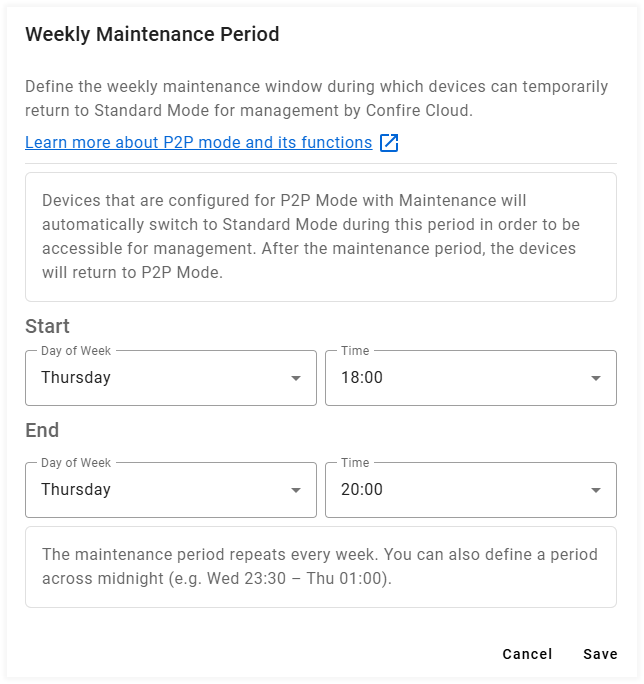
The Maintenance Period repeats automatically every week. It can also extend past midnight, for example from Wednesday 23:30 to Thursday 01:00.
Next: Once the Maintenance Period has been saved, you can activate P2P Mode with the configured schedule. Select the desired EZCast Pro devices, open Manage P2P Mode and choose P2P with Maintenance Window (P2P-M).
Confire Cloud will then send the P2P activation command together with the Maintenance Period schedule to the selected devices.
Manage P2P Mode
- In the device overview, select one or more devices using the checkboxes.

- Click the three dots (⋮) in the top-right corner and select Manage P2P Mode.
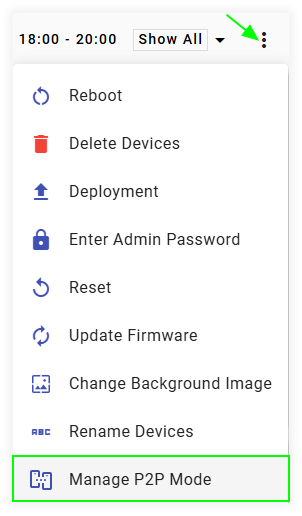
The Manage P2P Mode window opens, offering three operating modes and an option to disable automatic P2P activation.
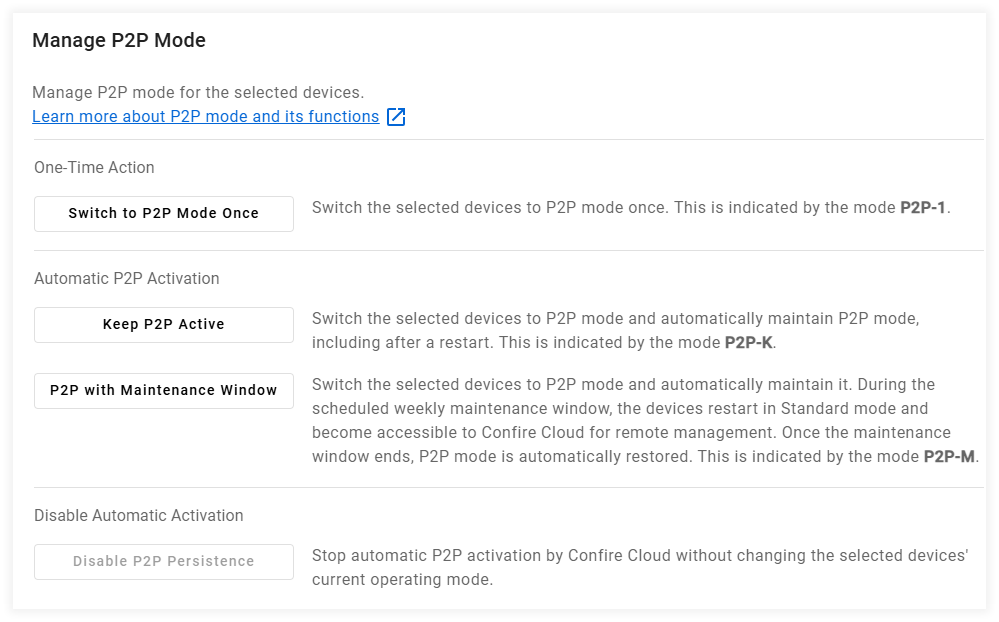
Available P2P Modes
1. Switch to P2P Mode Once (P2P-1)
Switches the selected devices to P2P Mode once, without enabling automatic P2P activation after a restart.
Devices using this mode are identified by the P2P-1 indicator in the device overview.
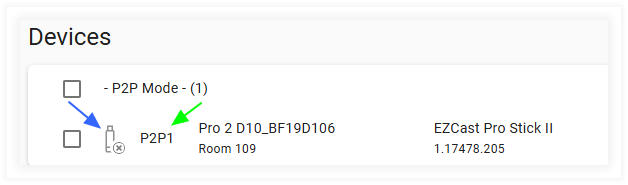
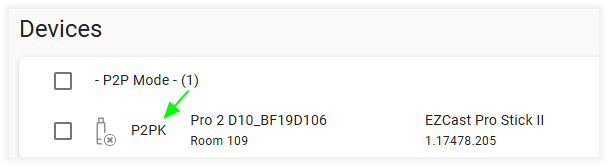
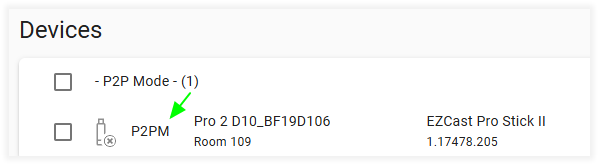
Note: While P2P mode is active, the device is no longer accessible over the network and is shown as offline in Confire Cloud (see the symbol marked in blue). The device can only be managed again through Confire Cloud once it has reconnected to the network.
2. Keep P2P Active (P2P-K)
Switches the selected devices to P2P Mode and automatically restores it after a device restart.
Devices using this mode are identified by the P2P-K indicator in the device overview.
3. P2P with Maintenance Window (P2P-M)
Switches the selected devices to P2P Mode and automatically maintains it, including after a restart. Confire Cloud sends the activation command and the configured schedule while the devices are still reachable.
Before selecting this mode, configure and save the weekly Maintenance Period. The device must receive its schedule while it is still accessible through the Wi-Fi infrastructure.
During the scheduled weekly Maintenance Period, devices reboot into Standard Mode and become accessible for remote management through Confire Cloud. Once the Maintenance Period ends, P2P Mode is automatically restored.
Devices using this mode are identified by the P2P-M indicator in the device overview.
4. Disable P2P Persistence
Disables automatic P2P activation by Confire Cloud without changing the current operating mode of the selected devices.
Note: If a device is already operating in P2P Mode, this action does not automatically switch it back to Standard Mode. It must be reachable for Confire Cloud to deliver the instruction.
Maintenance Period Indicator
Once configured, the weekly Maintenance Period is displayed at the top of the device overview.
For example, Thu 18:00 – 20:00 indicates that the Maintenance Period is scheduled every Thursday between 18:00 and 20:00.

Click the indicator to view or adjust the schedule. Changes intended for devices already in P2P Mode cannot be delivered until those devices are reachable again through the network.
During the configured period, devices using P2P-M return to Standard Mode and become accessible for remote management through Confire Cloud. After the Maintenance Period ends, they automatically return to P2P Mode.